 PDF Editor Pro
How to send a PDF to Kindle
There are three ways to get a PDF onto a Kindle: by email, through Amazon's Send to Kindle page, or by copying it over a USB cable. All three work, but a PDF page keeps its fixed layout, so on a 6-inch screen the text is often too small to read. This guide shows each method and how to turn the PDF into a real e-book whose text fits the screen.
Method 1: Send the PDF by email
- Find your Kindle's email address: on amazon.com open Account & Lists → Content Library → Devices, choose your Kindle and look for the address ending in
@kindle.com. - Add your own email address to the approved list: Preferences → Personal Document Settings → Approved Personal Document E-mail List. Amazon ignores mail from addresses that are not on this list.
- Write a new email to your
@kindle.comaddress and attach the PDF (up to 25 files, 50 MB in total). The subject and body can stay empty. - Wait a few minutes with the Kindle connected to Wi-Fi. The document appears in your library.
Tip: Send an EPUB instead of a PDF and Amazon converts it into a Kindle book whose text you can resize.
Method 2: Use Amazon's Send to Kindle page
- Open
amazon.com/sendtokindlein your browser and sign in with the Amazon account your Kindle uses. - Drag the PDF or EPUB onto the page (up to 200 MB per file).
- Choose the device and click Send. The file also stays in your Amazon library, so it reaches every Kindle and the Kindle app.
Method 3: Copy the PDF over USB
- Connect the Kindle to your PC with its USB cable. It shows up in File Explorer as Kindle.
- Open its
documentsfolder and copy the PDF into it. - Eject the Kindle safely. The PDF appears in the library straight away, with no internet connection needed.
Over USB a Kindle opens PDF and AZW3 files, but not EPUB. To read a book with resizable text over USB, convert it to AZW3 first.
Why the text of a PDF is so small on Kindle
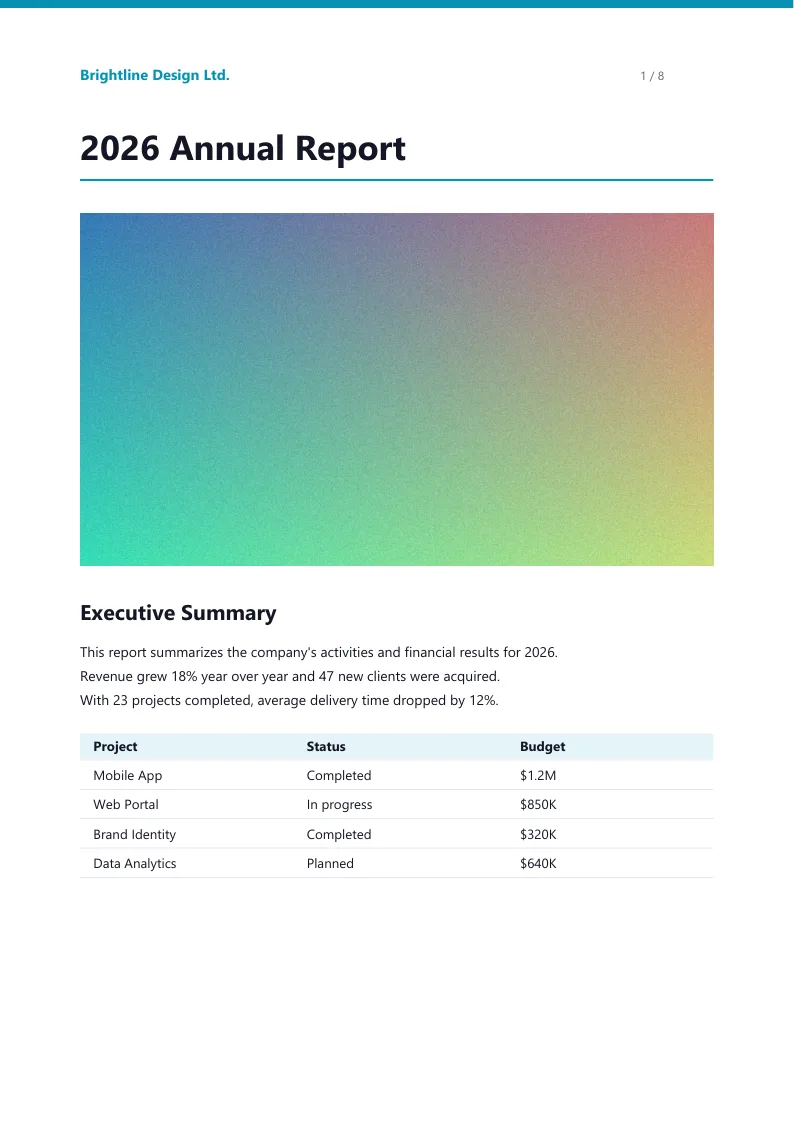
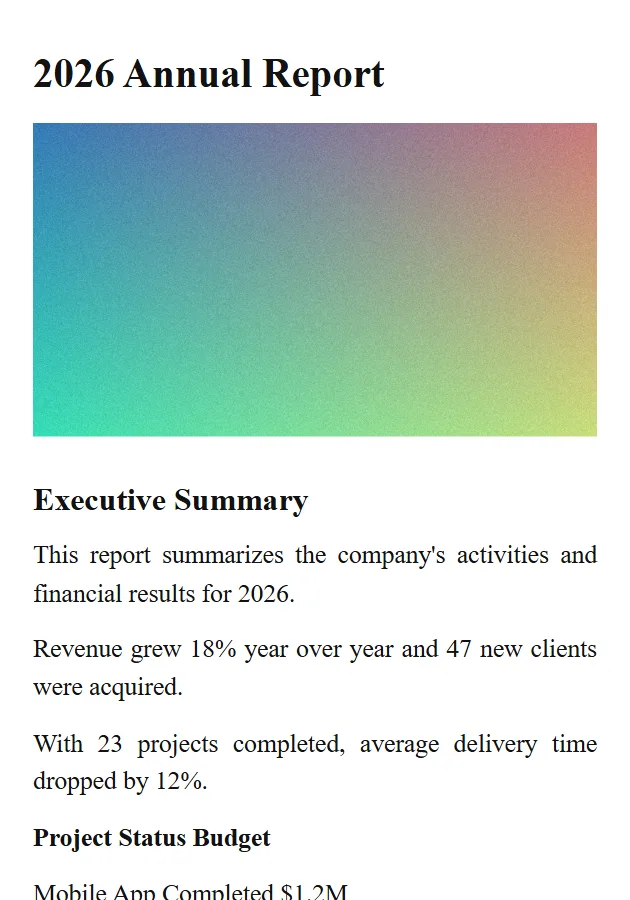
A PDF is a printed page: every line has a fixed position. The Kindle shrinks the whole page to fit the screen, so you have to zoom and scroll. An e-book format such as EPUB or AZW3 has no fixed pages. The text flows to the screen, and you choose the font and size. Converting the PDF to EPUB before sending it fixes the problem.
The one-click way: PDF Editor Pro
PDF Editor Pro is a Windows PDF editor with a built-in Send to Kindle button. It converts the PDF into an e-book and delivers it for you:
- Open the PDF in PDF Editor Pro and click Send to Kindle on the Convert tab.
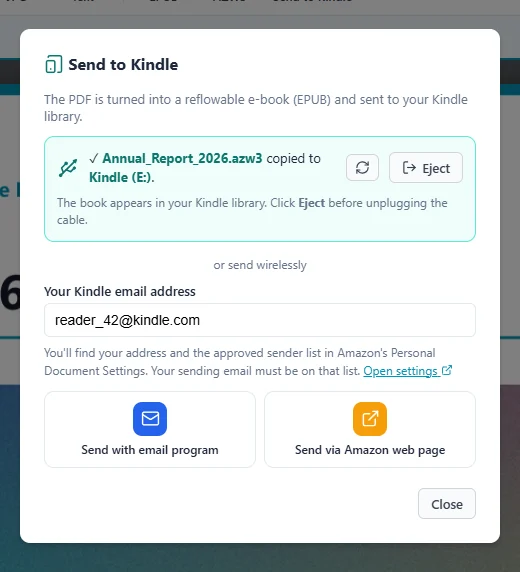
- If a Kindle is connected by USB, the program finds it and copies the book onto it in one click. With the free Calibre app installed it is sent as a resizable AZW3 book, otherwise as a PDF.
- No cable? The program creates an EPUB and sends it with your email program or opens Amazon's Send to Kindle page.
Chapters, headings, images, charts and tables are kept; page numbers and running headers are removed. Scanned PDFs have no text to reflow, so their pages are kept as images.
Send to Kindle and EPUB export are part of the full version ($9.99 one-time, no subscription). The free demo lets you try the editor first.
Frequently asked questions
Can a Kindle open PDF files?
Yes. Every Kindle opens PDFs sent by email, by the Send to Kindle page or over USB. The page layout stays fixed, though, so the text is often small on the screen.
Why can't I copy an EPUB to my Kindle over USB?
Kindles do not open EPUB files copied over USB. Send the EPUB by email or through the Send to Kindle page, and Amazon converts it for you, or convert it to AZW3 for USB.
How big can the file be?
By email, up to 50 MB in total per message. On the Send to Kindle web page, up to 200 MB per file.
Why did my email never reach the Kindle?
Usually the sender's address is missing from the Approved Personal Document E-mail List in your Amazon settings. Add it and send again.
Do I need Calibre?
Only to send a resizable book over USB (AZW3). For email and the Send to Kindle page, PDF Editor Pro creates the EPUB itself.